Windows 11 Context Menu
If you want to add Multiscreen Blank's "Blank this screen" right-click menu to the Windows 11 desktop, you need to use a 3rd-party utility (at least for now).
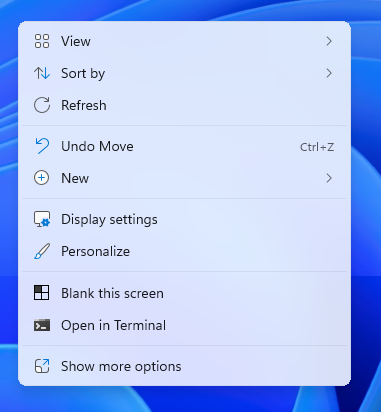
The open-source "Custom Context Menu" utility will allow you to customize various right-click menus including the one on the desktop. Once the app is installed, Multiscreen Blank will be able to automatically configure its context menu.
Custom Context Menu is available for free (click "Free trial" and use it without limitations). The paid option supports its developer and I do not receive any compensation if you use the paid version.
Get Custom Context Menu (Windows Store) GitHub Source CodeWhy this is necessary
On Windows 11, modern context menus (including the desktop context menu) can only be extended via signed packaged apps. This leaves me with a few options:
- Publish Multiscreen Blank in the Windows Store: This is something I plan to do at some point, but this will no longer function as a portable app and I still want to support the more portable use case.
- Sign a sparse package for sideloading: This will require me to pay around $400 for a code signing certificate which is not feasible given that I make no money from Multiscreen Blank.
- Self-sign the sparse package and install the certificate on end users' systems: This is useful for testing but goes against the whole intention of having signing in the first place, decreasing overall security. Such behavior is also "suspicious" and might get Multiscreen Blank flagged as a potential security risk.
Future plans
Multiscreen Blank v3 will use the modern WinUI framework and will be published via the Windows Store, avoiding the need for this workaround.
More information about Custom Context Menu
I discovered Custom Context Menu a while back and used it on my personal computer by manually adding a menu entry for Multiscreen Blank. It is open-source so you can see exactly what you are putting on your machine. I also studied its source code to learn more about the process of creating such a menu (which isn't difficult but it still has the Microsoft-imposed signing limitation).
One of the cool things about it is it stores configuration as JSON files (and the app itself has a button to open this directory). Multiscreen Blank is able to directly modify these entries once the app is installed and the changes are reflected almost immediately. Worst case you might need to log out and log back in.
An unfortunate limitation is that only one entry can be created per app. If you wish to add more entries to your desktop context menu, all of them will be grouped under an "Open with" submenu. This can be worked around by downloading the source code and building your own self-signed package on your own machine, then manually adding the menu you need.
I have no affiliation with the developer of the Custom Context Menu utility. You may choose to support that developer by purchasing the utility in the Windows store or download the indefinite free trial, but I do not receive any compensation for your use of it.